

Wuthering Waves Xbox Launch: Progress Sync & FAQ Guide
Wuthering Waves Arrives on Xbox: Everything You Need to Know
Starting July 10, 2026 (UTC+8), the world of Solaris-3 officially opens its doors to Xbox players, featuring full cross-platform compatibility with PC, mobile, and PlayStation 5. To ensure your game data, item collection, and spending carry over seamlessly, it is vital to correctly integrate your Microsoft account with your Kuro Games profile. For the most up-to-date resources and walkthroughs, head over to the GenshinBuilds Wuthering Waves guides portal.
Quick Reference
- Release Date: July 10, 2026 (UTC+8)
- Regions Supported: America, Europe, Asia, Southeast Asia, and HMT
- Shared Progress: Enabled, provided you stay within your original server region.
- Game Pass Perks: Eligible subscribers receive rewards directly via their in-game inbox.
- Account Integration: Mandatory for cross-progression; can be initialized upon your first sign-in.
Connecting Your Accounts
For Established Players
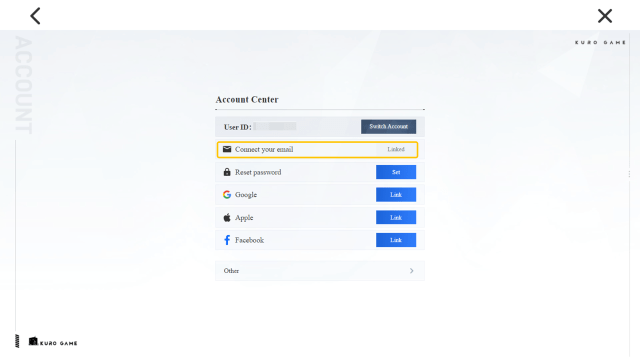
If you already play on another device, choose the "Already have an account? Log in" option when you launch the game on your console. You will be asked to connect your Microsoft credentials. For optimal account security, visit Settings > Account Settings > User Center to establish a password.
For New Adventurers
First-time players can select "Create a Kuro Games account" to establish a profile tethered to their Microsoft identity. Afterward, be sure to register an email address and password within the User Center to guarantee access across other hardware.
Synchronizing Your Data
Your game progression is restricted to the specific server where your character was initialized. To maintain progress across different devices:
- Utilize the identical Kuro Games account across every platform.
- Always choose the same server (e.g., America or Europe) on every device.
Note: If your original account relied on a third-party login like Facebook or Google, you must manually attach a Kuro Games email address via Settings > Account Settings > User Center. Simple third-party verification is insufficient for full sync.
Xbox Game Pass Rewards
Active Xbox Game Pass members—including those using PC Game Pass—can unlock special bundles by logging into their account on an Xbox console. These rewards are sent to your in-game mailbox. Be proactive about claiming these before the version cycle concludes. For further details on these offers, read our GenshinBuilds Xbox Game Pass Rewards guide.
Purchasing and Syncing Items
Items and currency purchased on other platforms will appear on your Xbox account once the link is confirmed. If your store items are missing, try these troubleshooting steps:
- Restart your console and re-log into your account.
- Inspect your Terminal > Backpack inventory.
- Verify that the Microsoft account you are using is the same one tied to your Kuro Games data.
- Submit a ticket via Terminal > Feedback if the issue persists.
Frequently Asked Questions
Q: Is it possible to detach my Microsoft account later?
Yes, via the Terminal > Feedback menu. Keep in mind that doing this separates your Kuro Games data from Microsoft, and this action can only be performed once per account.
Q: How do I switch back to PC or mobile?
Ensure your Kuro Games account has a password saved in the User Center. You can then sign in on other devices using your linked email and password.
Q: Can I link multiple accounts together?
No, the system enforces a strict one-to-one link between Microsoft accounts and Kuro Games profiles.
Essential Reminders
- Secure your account by linking an email and password immediately.
- Select your starting server carefully, as this choice is permanent.
- Collect Game Pass loot promptly to avoid expiration.
With this information, you are ready to take your journey in Solaris-3 to the big screen.